> ## Documentation Index
> Fetch the complete documentation index at: https://turnkey-0e7c1f5b-traian-remove-eip-712-note.mintlify.site/llms.txt
> Use this file to discover all available pages before exploring further.
# Getting started with the Turnkey Swift SDK
> Learn how to configure the Turnkey Swift SDK in your Swift app. This page covers organization setup, Swift Package Manager installation, and basic app configuration.
## Turnkey organization setup
To start, you must create a Turnkey organization via the [Turnkey dashboard](https://app.turnkey.com). The steps to do so are described in the [Account Setup](/get-started/quickstart) section.
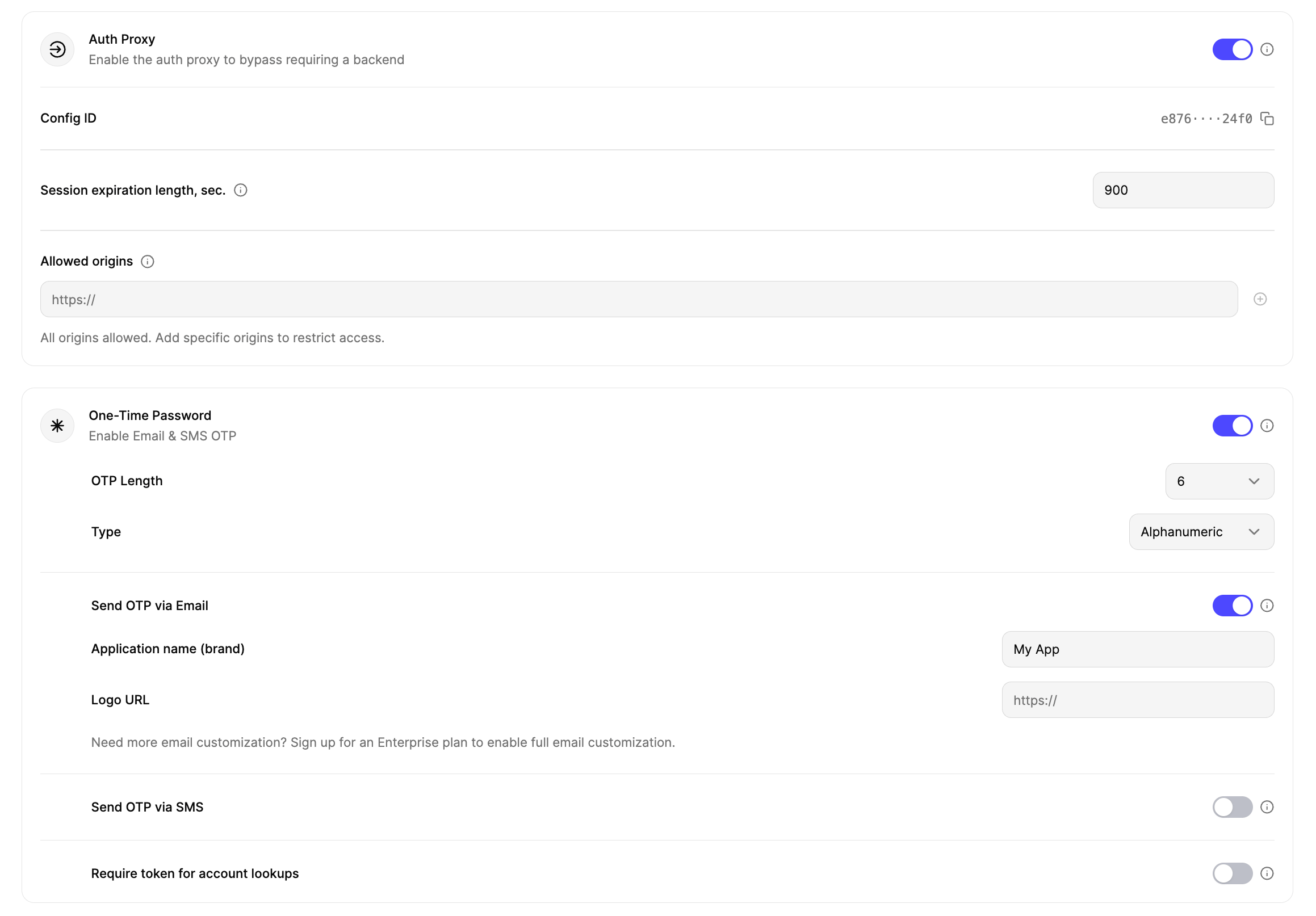
For this setup, we will be using Turnkey's Auth Proxy to handle authentication. We can enable and configure this through the Turnkey dashboard.
Navigate to the **Embedded Wallets → Configuration** section in the Turnkey Dashboard and enable the
**Auth Proxy**.
 You can choose which auth methods to enable and customize various options from this screen. For this quickstart, let's enable **email OTP** and **passkeys**. When you're done, click **Save**.
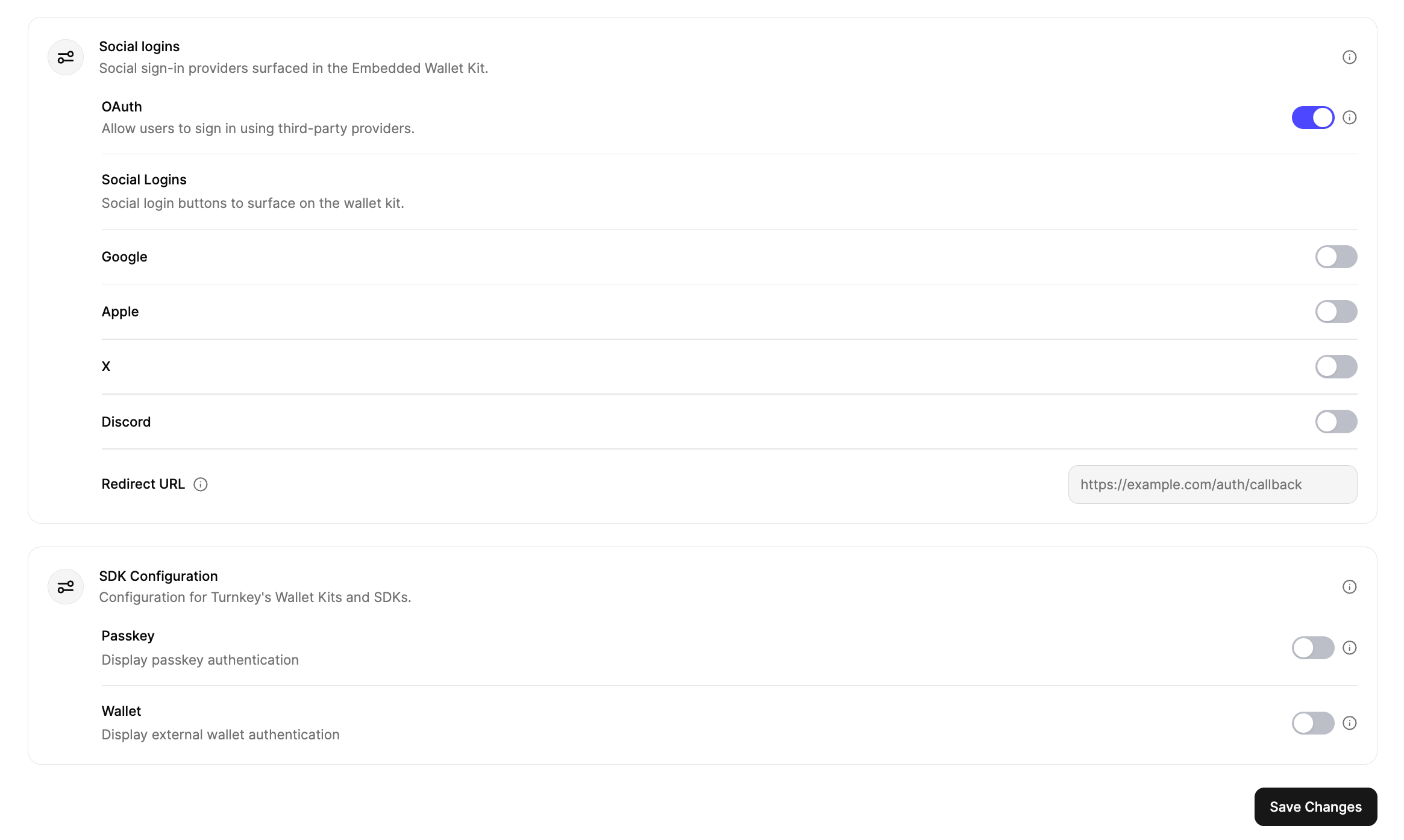 Once you're finished with the auth proxy setup, you can copy the **auth proxy config ID**
 and your **organization ID** from the dashboard.
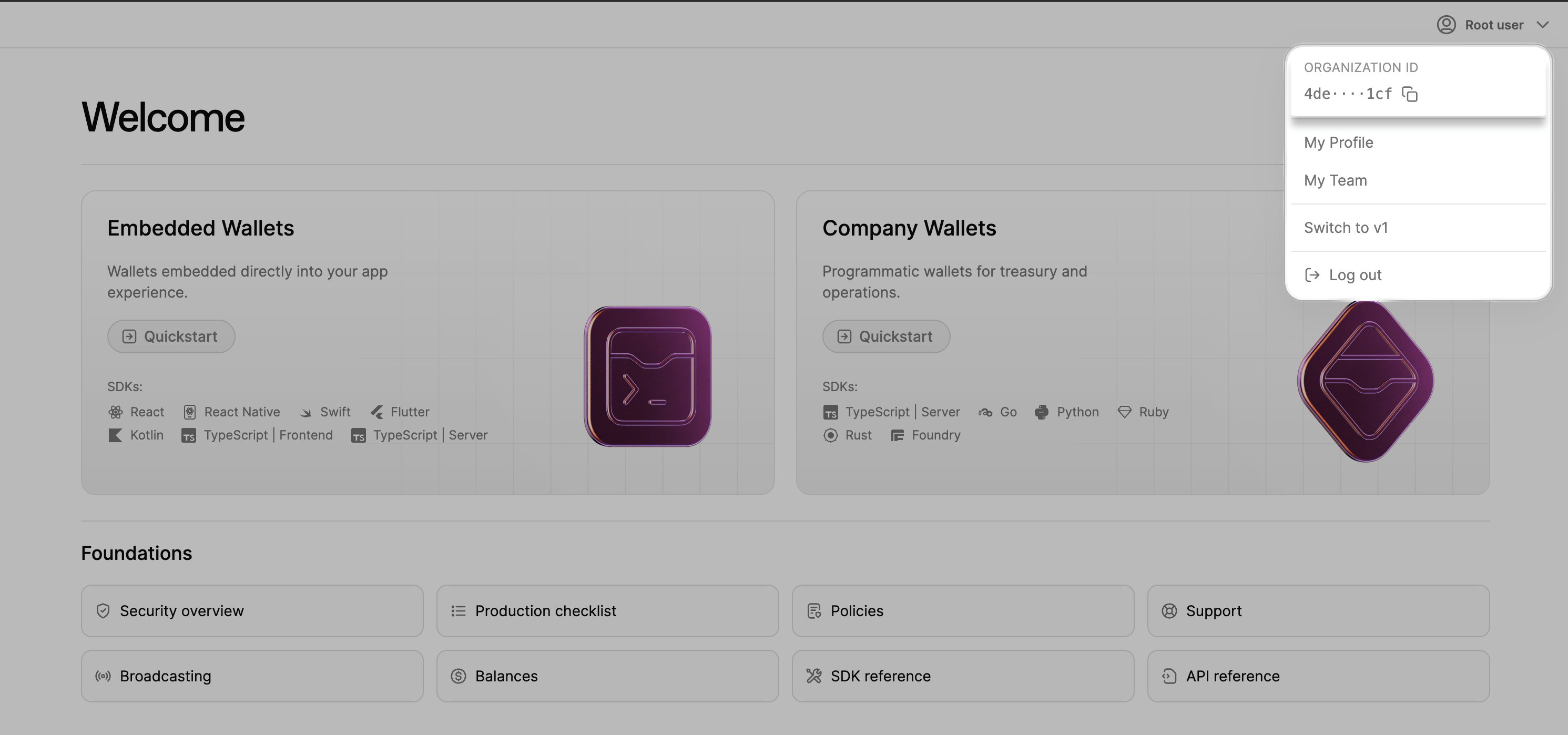 These will be used in the next steps to configure your app.
## Installation
You can add the Turnkey Swift SDK to any Swift app using Swift Package Manager (SPM). iOS 17+ and Xcode 15+ are required.
### Xcode UI
* In Xcode, go to: File → Add Package Dependencies…
* Enter the URL: `https://github.com/tkhq/swift-sdk`
* Select the `TurnkeySwift` product and add it to your app target
### Package.swift
If you manage dependencies in a `Package.swift`, add:
```swift Package.swift theme={null}
dependencies: [
.package(url: "https://github.com/tkhq/swift-sdk", branch: "main")
],
targets: [
.target(
name: "MyApp",
dependencies: [
.product(name: "TurnkeySwift", package: "swift-sdk")
]
)
]
```
## Configure URL scheme and passkeys
* If you are using OAuth, add your app scheme (e.g., `myapp`) so it can be used for OAuth redirects
* If you plan to use passkeys, add an Associated Domain capability (Signing & Capabilities → Associated Domains) with `webcredentials:yourdomain.com`. For detailed passkey setup (entitlements, RP ID, UX), see the [Passkeys](/solutions/embedded-wallets/integration-guide/swift/authentication/passkey) guide.
## SDK configuration
Set up a minimal configuration and provide the shared context to your app. The example below shows a SwiftUI setup:
```swift Constants.swift theme={null}
enum Constants {
enum App {
static let scheme = "myapp" // URL scheme used for OAuth redirects
static let rpId = "yourdomain.com" // domain used for passkeys (if enabled)
}
enum Turnkey {
static let organizationId = ""
static let authProxyConfigId = ""
}
}
```
```swift App.swift theme={null}
import SwiftUI
import TurnkeySwift
@main
struct MyApp: App {
@StateObject private var turnkey: TurnkeyContext
init() {
let config = TurnkeyConfig(
authProxyConfigId: Constants.Turnkey.authProxyConfigId,
rpId: Constants.App.rpId,
organizationId: Constants.Turnkey.organizationId,
auth: .init(
oauth: .init(appScheme: Constants.App.scheme)
),
autoRefreshManagedState: true
)
TurnkeyContext.configure(config)
_turnkey = StateObject(wrappedValue: TurnkeyContext.shared)
}
var body: some Scene {
WindowGroup {
ContentView()
.environmentObject(turnkey)
}
}
}
```
In SwiftUI, you can access the context via `@EnvironmentObject var turnkey: TurnkeyContext` to read authentication state and, later, perform wallet operations:
```swift ContentView.swift theme={null}
import SwiftUI
import TurnkeySwift
struct ContentView: View {
@EnvironmentObject var turnkey: TurnkeyContext
var body: some View {
Group {
switch turnkey.authState {
case .authenticated:
Text("Welcome!")
case .loading:
ProgressView()
default:
Text("Please log in")
}
}
}
}
```
For UIKit or AppKit, access `TurnkeyContext.shared` directly:
```swift ViewController.swift theme={null}
import UIKit
import TurnkeySwift
class ViewController: UIViewController {
override func viewDidLoad() {
super.viewDidLoad()
// Access the shared context
let turnkey = TurnkeyContext.shared
// Check authentication state
if turnkey.authState == .authenticated {
// User is authenticated
}
}
}
```
## Next steps
* Move on to [Authentication](/solutions/embedded-wallets/integration-guide/swift/authentication/overview) to learn how to authenticate users in your app.
These will be used in the next steps to configure your app.
## Installation
You can add the Turnkey Swift SDK to any Swift app using Swift Package Manager (SPM). iOS 17+ and Xcode 15+ are required.
### Xcode UI
* In Xcode, go to: File → Add Package Dependencies…
* Enter the URL: `https://github.com/tkhq/swift-sdk`
* Select the `TurnkeySwift` product and add it to your app target
### Package.swift
If you manage dependencies in a `Package.swift`, add:
```swift Package.swift theme={null}
dependencies: [
.package(url: "https://github.com/tkhq/swift-sdk", branch: "main")
],
targets: [
.target(
name: "MyApp",
dependencies: [
.product(name: "TurnkeySwift", package: "swift-sdk")
]
)
]
```
## Configure URL scheme and passkeys
* If you are using OAuth, add your app scheme (e.g., `myapp`) so it can be used for OAuth redirects
* If you plan to use passkeys, add an Associated Domain capability (Signing & Capabilities → Associated Domains) with `webcredentials:yourdomain.com`. For detailed passkey setup (entitlements, RP ID, UX), see the [Passkeys](/solutions/embedded-wallets/integration-guide/swift/authentication/passkey) guide.
## SDK configuration
Set up a minimal configuration and provide the shared context to your app. The example below shows a SwiftUI setup:
```swift Constants.swift theme={null}
enum Constants {
enum App {
static let scheme = "myapp" // URL scheme used for OAuth redirects
static let rpId = "yourdomain.com" // domain used for passkeys (if enabled)
}
enum Turnkey {
static let organizationId = ""
static let authProxyConfigId = ""
}
}
```
```swift App.swift theme={null}
import SwiftUI
import TurnkeySwift
@main
struct MyApp: App {
@StateObject private var turnkey: TurnkeyContext
init() {
let config = TurnkeyConfig(
authProxyConfigId: Constants.Turnkey.authProxyConfigId,
rpId: Constants.App.rpId,
organizationId: Constants.Turnkey.organizationId,
auth: .init(
oauth: .init(appScheme: Constants.App.scheme)
),
autoRefreshManagedState: true
)
TurnkeyContext.configure(config)
_turnkey = StateObject(wrappedValue: TurnkeyContext.shared)
}
var body: some Scene {
WindowGroup {
ContentView()
.environmentObject(turnkey)
}
}
}
```
In SwiftUI, you can access the context via `@EnvironmentObject var turnkey: TurnkeyContext` to read authentication state and, later, perform wallet operations:
```swift ContentView.swift theme={null}
import SwiftUI
import TurnkeySwift
struct ContentView: View {
@EnvironmentObject var turnkey: TurnkeyContext
var body: some View {
Group {
switch turnkey.authState {
case .authenticated:
Text("Welcome!")
case .loading:
ProgressView()
default:
Text("Please log in")
}
}
}
}
```
For UIKit or AppKit, access `TurnkeyContext.shared` directly:
```swift ViewController.swift theme={null}
import UIKit
import TurnkeySwift
class ViewController: UIViewController {
override func viewDidLoad() {
super.viewDidLoad()
// Access the shared context
let turnkey = TurnkeyContext.shared
// Check authentication state
if turnkey.authState == .authenticated {
// User is authenticated
}
}
}
```
## Next steps
* Move on to [Authentication](/solutions/embedded-wallets/integration-guide/swift/authentication/overview) to learn how to authenticate users in your app.